A Practical Guide to Microsoft 365 Email Security & Google Workspace Hardening Against AI-Generated Phishing
A native-controls checklist to stop BEC and AI phishing in Microsoft 365 and Google Workspace, plus the post-click hardening most orgs miss.
Written by
Vito Prasad
Nate Namiotka
Published on
January 23, 2026
TL;DR
Phishing has always been around. What’s changed is the quality. The sloppy tells are gone, so the emails that hurt you look like normal work: a vendor thread, an invoice update, a “reset my access,” a calendar invite that lands right on someone’s schedule. This is now a business email compromise (BEC) problem as much as a phishing problem. Then the same loop starts: “is this legit?” forwards, finance pressure, and security taking the blame when one message slips through.
Before you add another security product, it’s worth asking a simpler question:
Have we pushed Microsoft 365 / Google Workspace as far as they can go — with native controls?
This guide is the raise-the-floor playbook: make external email unmistakable, tighten authentication signals (SPF/DKIM/DMARC), remove dangerous trust gaps, and add friction to high-risk requests.
The second half of this guide includes post-click admin wins (OAuth consent, auto-forwarding, legacy auth, device trust, phishing-resistant MFA).
Who this is for
Admins and security teams responsible for Microsoft 365 email security (Exchange Online, Defender for Office 365, Entra ID) and/or Google Workspace Gmail — especially if you’re evaluating email security services or an email security gateway and want to harden native controls first.
Quick Start (30–60 minutes)
If you only do a few things:
Make external mail visually obvious (native external indicators first).
Start DMARC monitoring and plan staged enforcement.
Remove wildcard vendor allow-lists (the “VIP lane” attackers love).
Add 1–2 tripwires for bank changes / urgent payment requests.
Invites are a “quiet bypass” — they can land as calendar noise where users don’t apply normal inbox scrutiny.
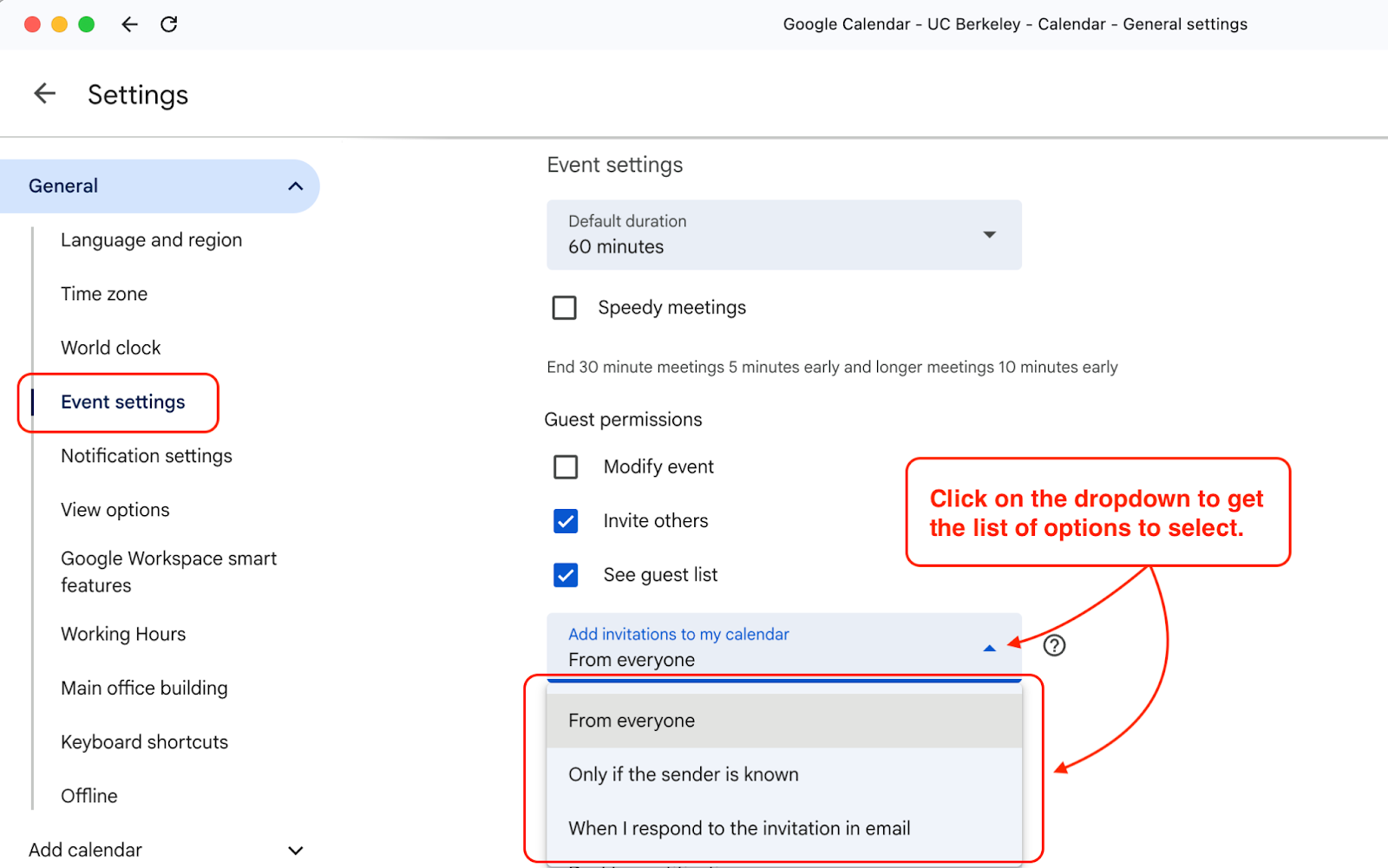
A. Google Workspace (admin-friendly lever): You can set the org default for what invites get auto-added. One option is “Invitations from known senders,” where unknown senders only reach users via email. Verify: send an invite from an unknown external sender and confirm it doesn’t auto-appear on the calendar (the user receives an email invite instead).
lose the calendar bypass: don’t auto-add invites from unknown senders.
B. Microsoft 365 (practical lever): mail flow rule for Calendaring messages:
Set-CalendarProcessing
is documented as effective only on resource mailboxes (rooms/equipment), so treat “turn off auto-processing everywhere” advice as advanced and test carefully.
Instead, if you’re seeing spammy external invites, you can use an Exchange mail flow rule that targets message type = Calendaring and external senders to remove or divert those messages.
Verify: send an external meeting request > confirm it’s blocked/diverted per your rule.
2.1 Microsoft 365: external sender identification (preferred) + banners (optional)
There are two approaches. Most orgs do both: a native indicator for everyone, and a louder banner for high-risk groups.
Option A (preferred): native external sender identification in Outlook
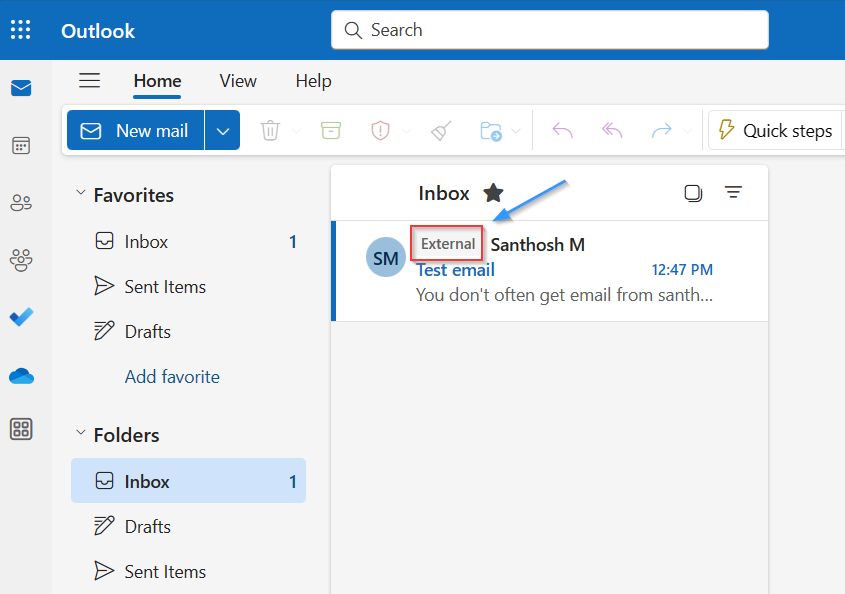
What ‘good’ looks like: external sender is visually flagged in Outlook.
Microsoft supports a native “external sender identification” UI in Outlook clients, enabled tenant-wide via Exchange Online PowerShell.
(These cmdlets specifically control external sender identification in Outlook, OWA, Outlook for Mac, and mobile clients.)
Verify: send an email from outside the tenant and confirm the external sender callout appears in Outlook.
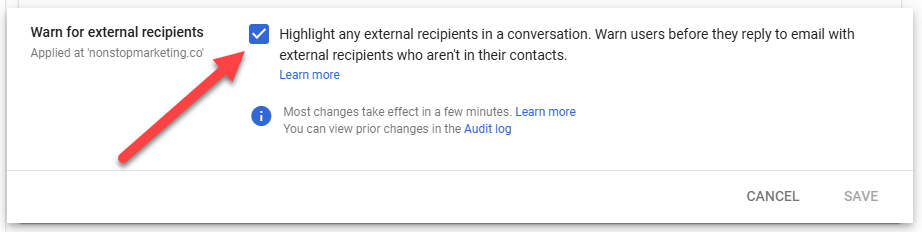
Option B (optional for higher vis): mail flow rule with a banner/disclaimer
A mail flow rule (transport rule) is an “if/then” rule for messages. Microsoft documents using the EAC “Apply disclaimers” action > add organization-wide disclaimers/headers/footers.
Verify: send test threads involving external participants and confirm the intended warning behavior; confirm advanced protections are set for high-risk groups.
Most orgs have SPF. Fewer have DKIM + DMARC fully implemented and enforced.
Minimum bar:
SPF: one record per sending domain; end with -all once you’re confident.
DKIM: enable signing for each domain.
DMARC: start with p=none, review reports, then move to quarantine > reject in stages.
Editor’s note: we will do a deeper dive in DMARC rollout post next
4) Clean up vendor allow-lists (stop the “VIP lane”)
AI phishing works best inside trusted stories (“your vendor,” “your bank,” “your payroll provider”). Broad allow-lists make that easy.
Microsoft 365: audit transport rules and any allowlisting. Microsoft’s guidance on allowing inbound messages exists, but the key idea is: avoid wildcards and scope to real workflow senders. Google Workspace: use address lists and compliance/routing settings carefully — avoid giving “always allow” status to entire domains unless you can justify it.
Operational policy (worth saying explicitly):
Bank detail changes and payment releases are never approved on email alone.
5) Add tripwires for high-risk requests
You’re not trying to catch every scam with keywords. You’re encoding a short list of scenarios that should never be frictionless.
If you want these tripwires to actually hold risky mail (vs just warn), use a mail flow rule action that sends the message to quarantine.
Where: Exchange admin center to Mail flow to Rules Rule pattern:If external sender + finance recipients + payment keywords send to quarantine
Recommended “bank change / wire” rule
IF
Sender is Outside the organization
AND recipient is in Finance/AP (group)
AND subject/body contains: wire, ACH, routing number, bank details, invoice update
THEN
Deliver the message to the hosted quarantine (aka “Redirect the message to > hosted quarantine”).
(Optional) Generate an incident report to a monitored mailbox, so you see it without living in quarantine all day.
Important gotcha (worth calling out in the post): When a rule sends a message to quarantine, rule evaluation stops, and if the message is later released, the rules that weren’t evaluated won’t run. So keep quarantine rules late in your rule order (or make them as self-contained as possible).
When to use “Review mailbox” instead of quarantine
You want a human check but don’t want to block business flow (ex: first week of rollout)
Use BCC/incident report to a review mailbox instead of quarantine (less disruptive)
5.3 Rule Config (Google Workspace): Content compliance to Quarantine
Google’s cleanest “tripwire to hold for review” path is a Content compliance rule with the action Quarantine the message.
Attack pattern: account takeover > auto-forward > a personal mailbox > quiet data siphon.
Microsoft 365
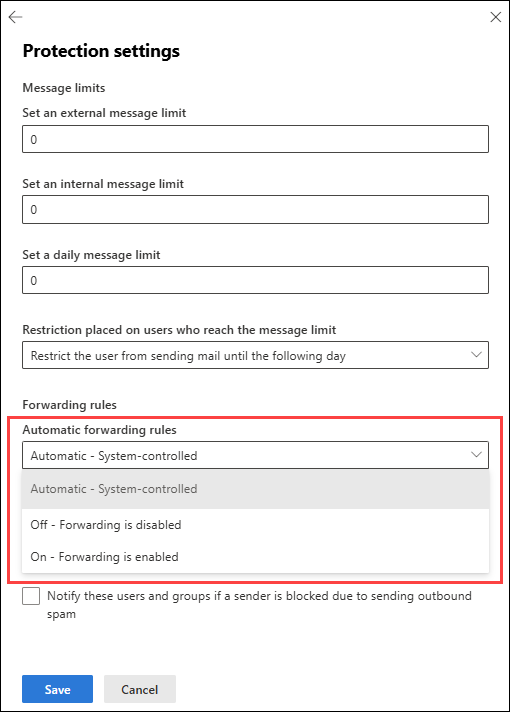
Microsoft explicitly calls out that outbound spam policies control both Inbox rules forwarding and mailbox (SMTP) forwarding, and documents the three settings:
Automatic (system-controlled) = now effectively Off
On = allow
Off = disable (NDR/bounce)
Config: Defender portal > Policies & rules > Threat policies > Anti-spam > Outbound spam policy > set Automatic forwarding = Off. Verify: create an inbox rule that forwards externally > confirm it fails.
Google Workspace Admins can turn automatic forwarding on/off for the org; when off, the forwarding option isn’t available in Gmail settings.
Admin console > Apps > Google Workspace > Gmail > End User Access > Automatic forwarding > uncheck “Allow users to automatically forward…” (when off, the forwarding option disappears for users). Verify: turn it off for an OU and confirm users can’t enable forwarding in Gmail settings.
Block silent exfil: disable/lock down automatic external forwarding.
6.3 Treat “suspicious inbox rules” as an incident signal
Attack pattern: attackers create rules to hide replies, delete security notices, or reroute invoices.
Microsoft provides Defender XDR playbooks for investigating:
Verify: your team can find these alert types and has a runbook/owner (even if you don’t generate them in prod).
6.4 Block legacy authentication (spray magnet)
Attack pattern: password spraying against legacy protocols.
Microsoft documents a Conditional Access policy to block legacy authentication (further reading), starting in Report-only mode. Verify: run report-only, review impact in sign-in logs, then enforce (exclude break-glass).
Editor note: this is a security default for all new tenants
6.5 Make stolen creds less useful: require managed/compliant devices
Attack pattern: attacker logs in from a random unmanaged device.
Microsoft:Conditional Access can require “device marked compliant” (Intune-backed). Verify: attempt access from an unmanaged/non-compliant device and confirm block/step-up behavior.
Google:Context-Aware Access lets you gate access based on device security status/location/IP; it’s edition-dependent. Verify: create an access level, set to monitor first, then enforce for Gmail and validate on a test device.
6.6 Upgrade MFA from “checkbox” to phishing-resistant (admins/finance first)
Microsoft:number matching is documented as a security upgrade for Authenticator push. For phishing-resistant MFA, Entra supports authentication strengths and recommends phishing-resistant methods like passkeys (FIDO2).
Passkeys (which use the FIDO2 standard) are considered phishing-resistant because, unlike passwords or one-time codes, they are cryptographically bound to the specific website or application they were created for. This feature defeats the central mechanism of phishing, which relies on tricking a user into giving up a transferable credential on a malicious site.
Verify: confirm number matching prompts are in use; pilot phishing-resistant MFA for a high-risk group with Conditional Access.
Google: admins can deploy/enforce 2-Step Verification and there’s an “Only security key” policy option. Verify: apply to a test OU/group and confirm enforcement behavior.
6.7 Turn user-reported phishing into a real control (routing + triage)
Microsoft documents the built-in Report button and configuring it via user reported settings in Defender. Verify: confirm the Report button appears for supported Outlook clients and reports land in your chosen destination (Microsoft, a mailbox, or both).
The “Report” button is only useful if reports land somewhere actionable and you treat them as an early-warning sensor.
What you want:
Reports go to Microsoft/Google (so global detections improve)
AND a monitored internal destination (so you can respond fast)
Reports trigger a consistent triage workflow (even if it’s lightweight)
Microsoft 365
Configure user-reported submissions to go to a monitored mailbox and/or Microsoft.
Confirm the report flow works across the Outlook clients your org uses.
Decide who owns triage (SOC, IT, or a shared rotation).
Google Workspace
Ensure “Report phishing” is visible.
Route internal reports to a monitored workflow (label/queue/mailbox) so it doesn’t become a black hole.
Verify (5 minutes):
Report a test phish from a test mailbox
Confirm it arrives where you expect
Confirm you can take a next action quickly (search similar messages, remove/quarantine, tune a rule)
Q: Is this enough without a third-party tool? A: For many orgs, raising the native floor + identity containment removes the easy wins attackers rely on. If you still see targeted BEC or token abuse, then you evaluate additional layers.
Q: What should the follow-on post be? A: “Assume one gets through: Identity & device hardening in Entra ID and Google Workspace” (phishing-resistant MFA for admins/finance, Conditional Access/Context-Aware Access, OAuth consent governance, and alert/runbook setup).
Q: Can I block calendar invitation spam/phishing using native tools?
A: Yes, but it requires changing defaults. By default, both Google and Microsoft automatically place invites on your calendar, which spammers exploit.
For Microsoft 365: Use the Set-CalendarProcessing PowerShell cmdlet to disable AutomateProcessing for users. This forces invites to stay in the inbox as emails, where your standard anti-spam rules can catch them. You can also create a Mail Flow Rule to block invites where the sender is "Outside the organization" and the message type is "Calendaring" unless the sender is on a safe list.
For Google Workspace: Instruct users (or set via policy if available) to go to Calendar Settings > Event Settings and change "Add invitations to my calendar" to "Only if the sender is known." This blocks invites from unknown external addresses from cluttering the schedule.
Q: How do I detect hidden text (ZeroFont) or obfuscated links without buying new tools?
A: Native tools struggle to "see" hidden text directly, but you can flag the behavior associated with it.
Microsoft 365: Enable Safety Tips in your Anti-Phishing policy. This alerts users to "Unusual characters" or "impersonation" attempts often found in obfuscated emails.
Mail Flow Rules: Create a rule to flag or quarantine emails containing high-risk keywords (like "Urgent," "Wire," "Password") if they also contain specific HTML tags known for obfuscation (though this can be noisy). The best native defense here is User Reporting—making it easy for users to flag odd-looking emails so Microsoft’s/Google’s global filters learn faster.
Q: Are third-party AI security tools better than native Microsoft/Google defenses?
A: "Better" is the wrong metric; "different" is more accurate.
Native Tools (Microsoft/Google): Rely on massive scale (trillions of signals) and known signatures. They are excellent at stopping high-volume spam and known malware.
Third-Party AI Tools: Excel at anomaly detection (e.g., "John never logs in from this location and writes this way").
The Verdict: Most organizations are under-utilizing the native tools they already pay for. Before adding a third-party layer, "raise the floor" by fully configuring SPF/DKIM/DMARC and tightening your anti-spam policies. You may find you don't need the extra tool after all.
Q: What new AI-driven email scams should we look out for this year?
A: The landscape of AI email security is shifting—AI has perfected the 'boring' parts of phishing. Expect Deepfake Voice/Video in "Fake CEO" attacks (vishing) and Hyper-Personalized Phishing. Attackers use AI to scrape LinkedIn and write emails that reference specific recent events (conferences, deal closings) to build instant trust. The best defense is process, not just tech: require secondary verification (like a quick phone call) for any unusual payment request.
Don’t Miss the Next Big Threat
Subscribe today to receive updates on the newest cyberattacks, product innovations, and best practices for protecting your organization.
Red Tide: A Calendar-Invite Worm That Spreads Mailbox to Mailbox
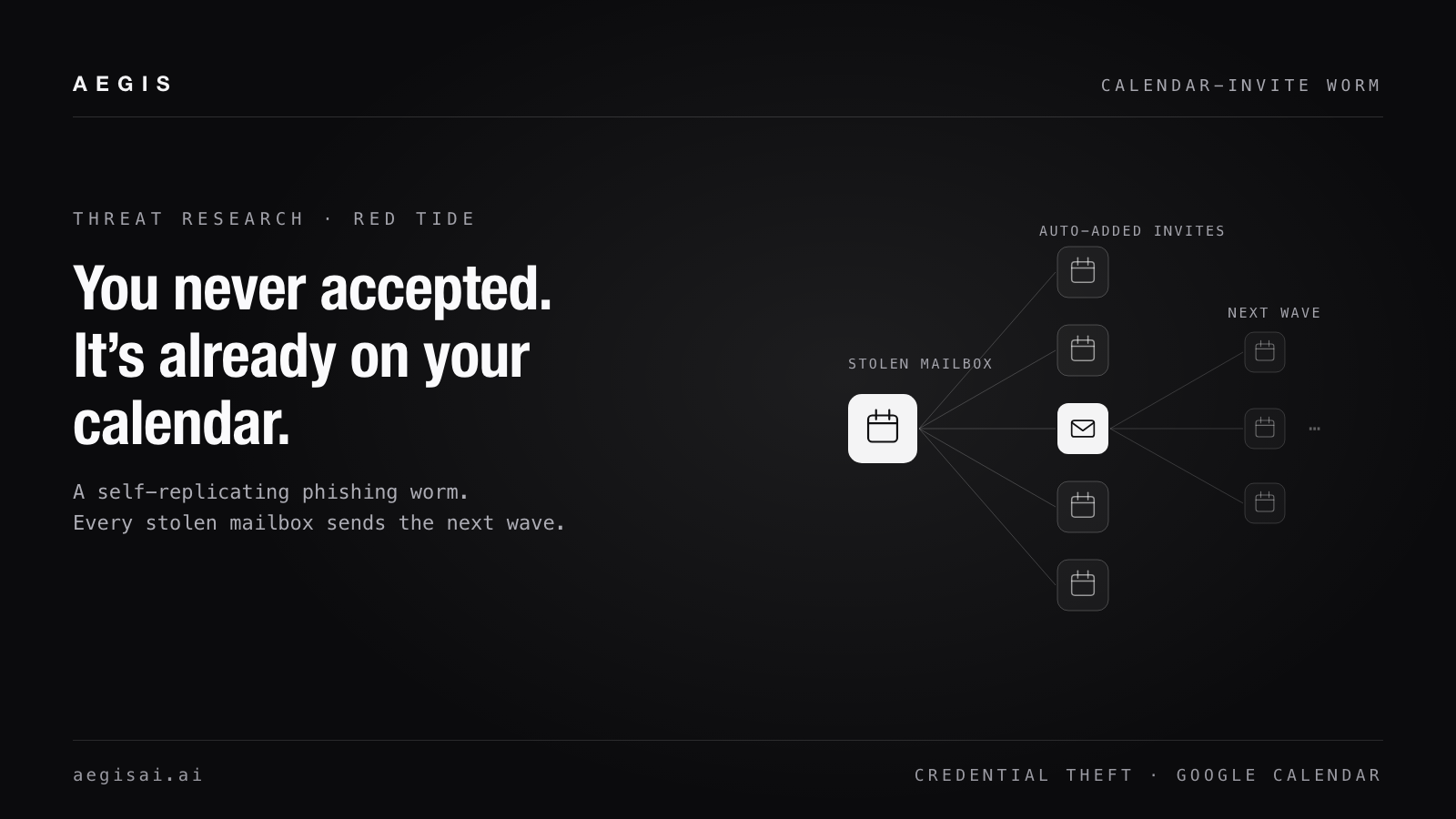
A phishing campaign that spreads itself: in one confirmed case, a personal Gmail account picked up the lure, and nineteen minutes later a different mailbox at the same company was sending it onward.
The Inbox Has a Second Reader: Prompt Injection in Gemini and Copilot
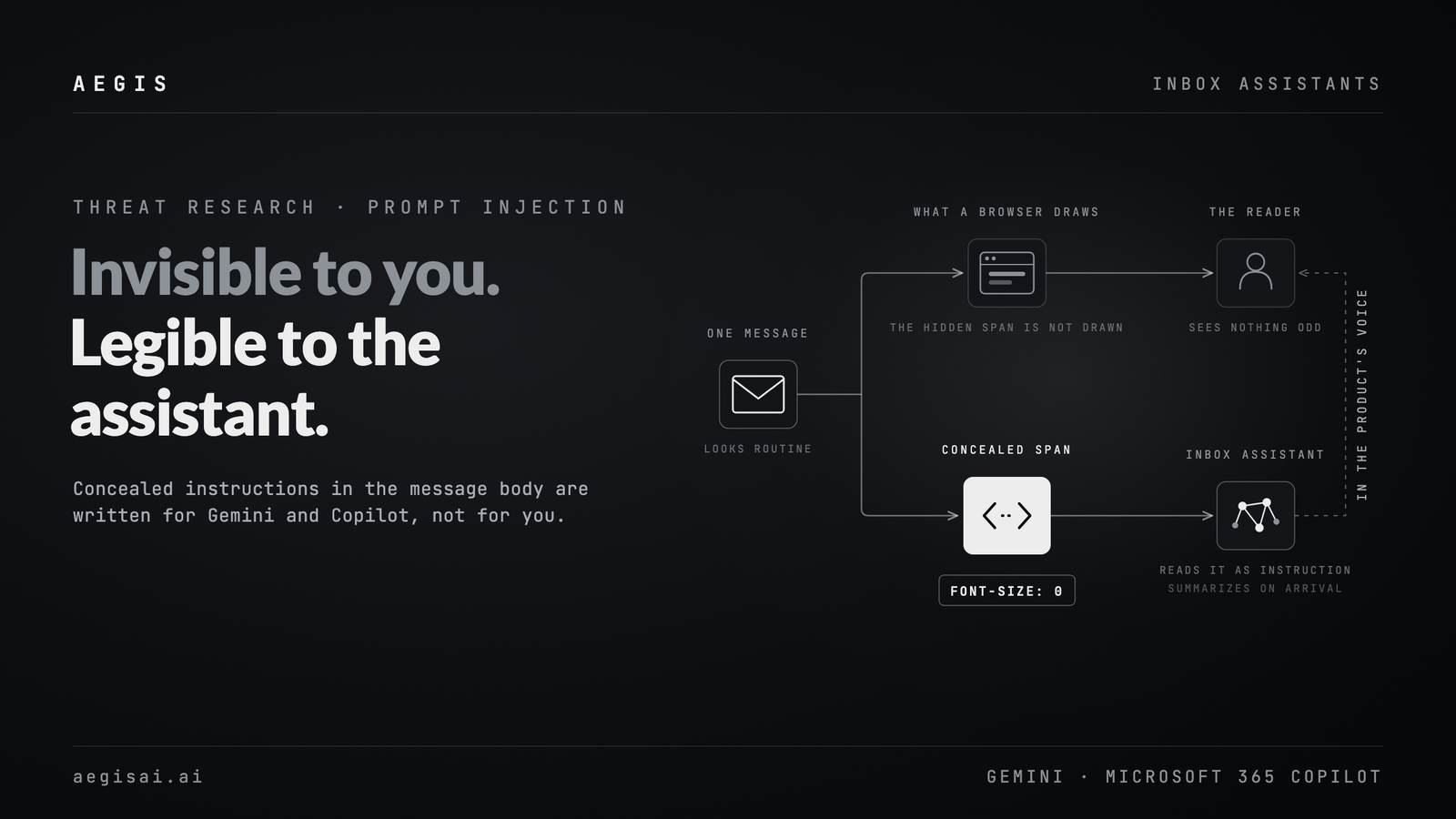
Attackers hide instructions in email that Gemini and Copilot read and that people cannot see. How email prompt injection works, and how Aegis catches it.
How to Replace a Secure Email Gateway Without Breaking Mail Flow
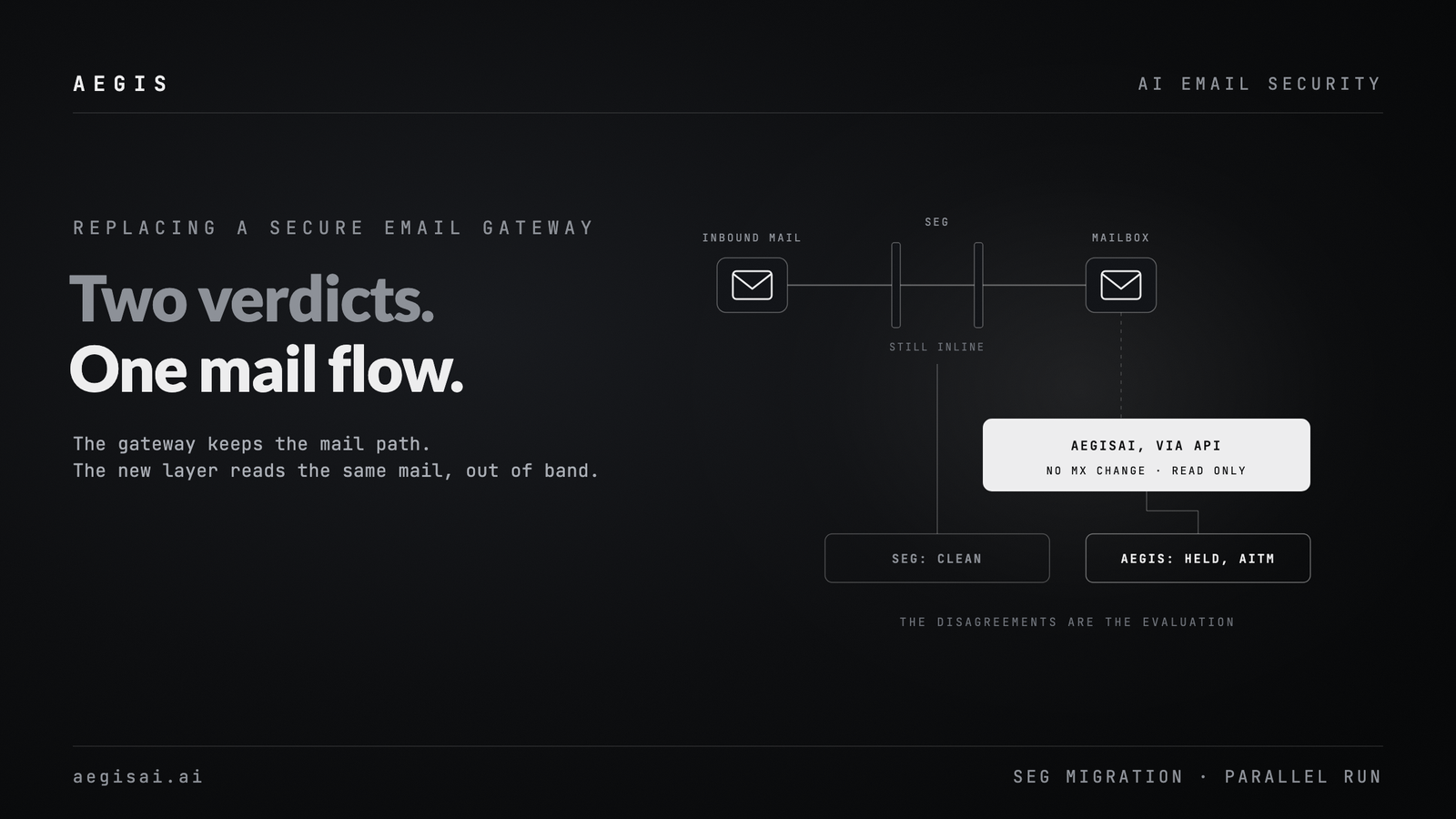
Replace your secure email gateway with no MX change. A parallel-run migration plan: pilot design, stakeholder buy-in, and the metrics that prove it worked.